
How to compress a PDF
pdfcompressor.com makes a PDF file smaller without changing how it looks or what's in it. Page count, page order, and selectable text stay the same; only the file size goes down. Useful for email attachments, upload limits, and anywhere you'd rather not move 30 MB when 5 MB will do.
Step 1: Upload
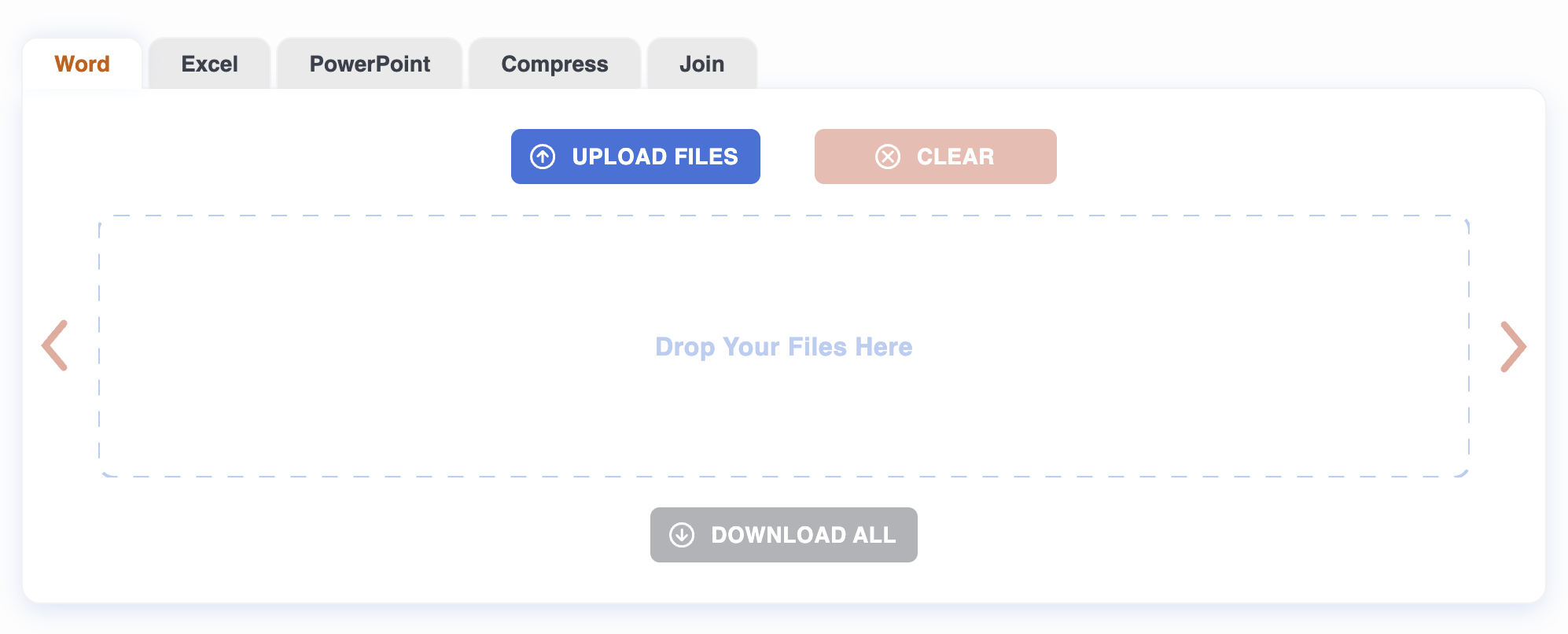
Drag a PDF onto the page, or click to pick one. Up to 20 files at once, 50 MB each. Compression starts automatically when each upload finishes.
Step 2: Wait
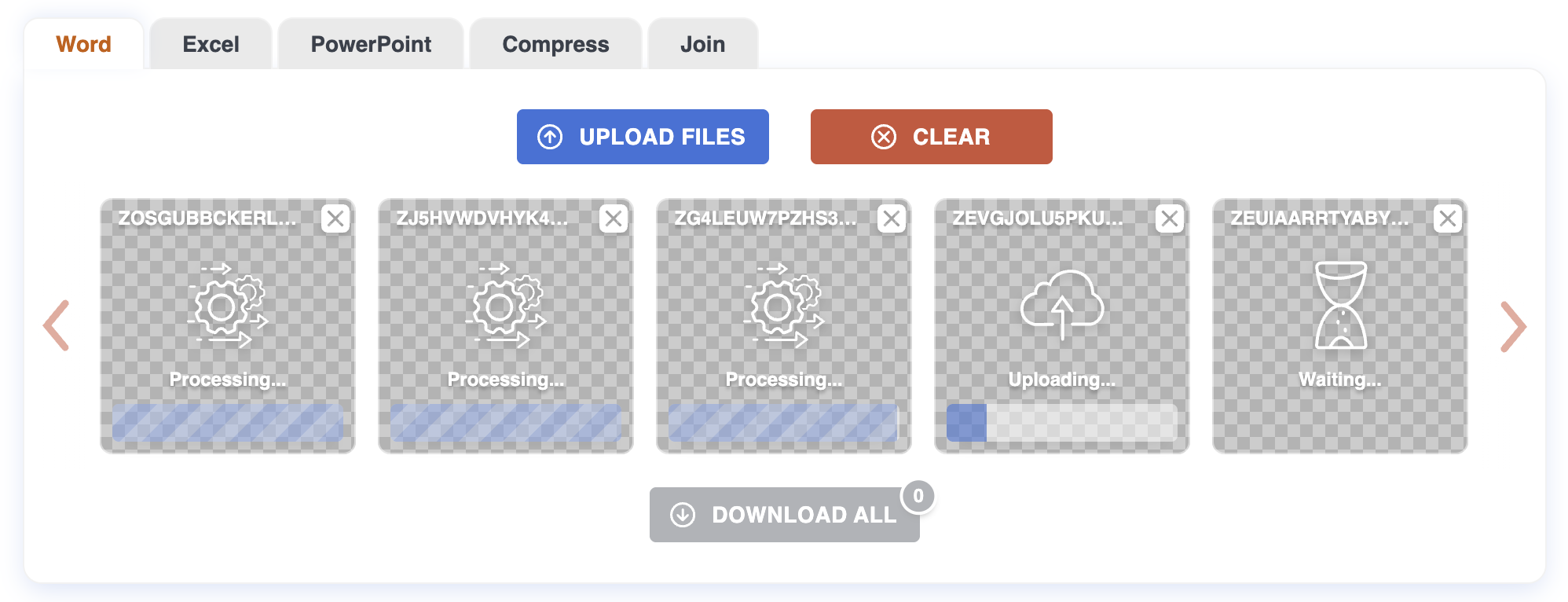
The compressor re-encodes images at sensible resolutions, deduplicates repeated objects, drops unused metadata, and applies JBIG2 to scanned black-and-white pages. None of this changes the page count, page order, or what you can select and search.
A progress bar on each row shows the stage. Files are processed in parallel.
Step 3: Download
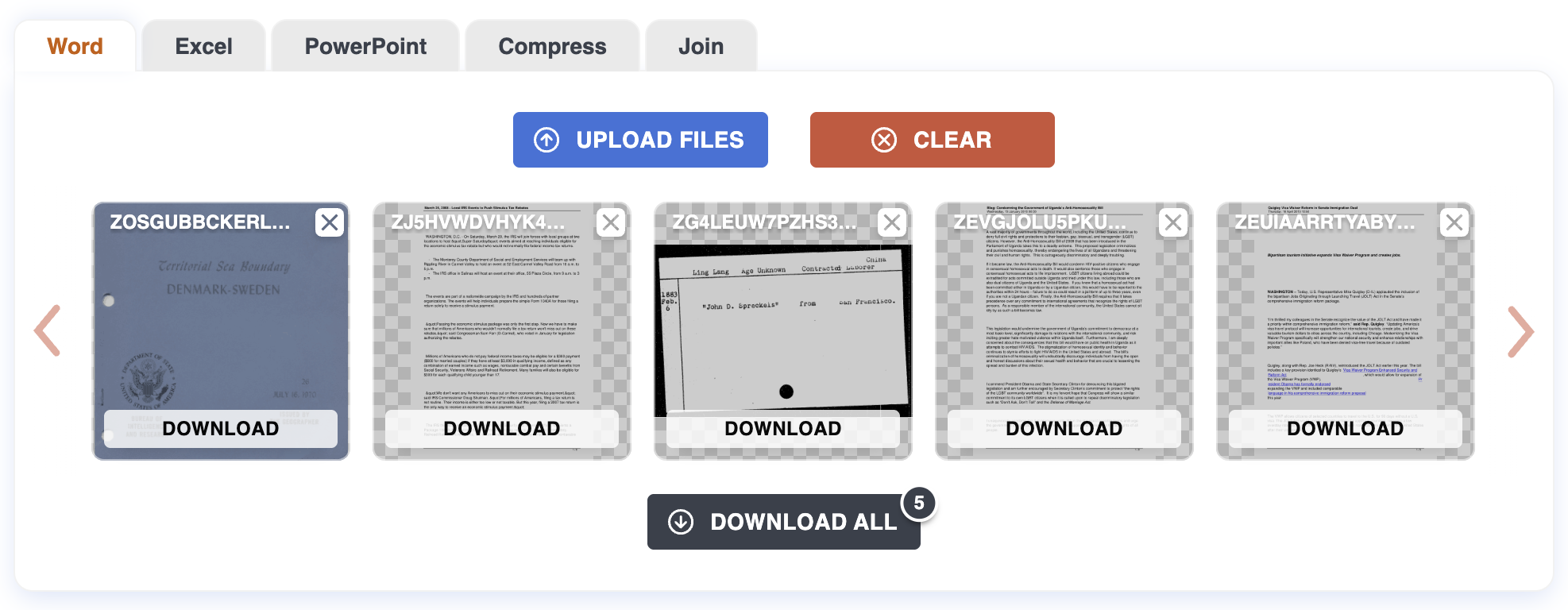
Each finished file shows the new size and the percentage saved next to a Download button. For a batch, use "Download all" to grab everything as a ZIP.
What to expect
- Scans shrink the most. A 30 MB scanned contract often drops to 5–8 MB once JBIG2 and image re-encoding kick in.
- Text-and-vector PDFs shrink the least. Invoices generated from a template, LaTeX exports, and similar already have very little to compress — expect a modest reduction.
- The result is visually identical at normal viewing sizes. If you zoom in to 400% you may notice slightly softer images on heavily compressed scans.
- Re-compressing already-compressed PDFs rarely helps. Start from the original whenever you can.
What won't work
Password-protected files. The compressor needs to read the file structure. Remove the password first.
Corrupt files. If the PDF won't open elsewhere, it won't open here either.
Files over 50 MB. Split them or compress them in another tool first.
Privacy
Files are uploaded over HTTPS and processed on our server. Both the original and the compressed result are deleted automatically after one hour. No account required.
For more on how PDF compression works, see the Blog.